
Download Instruction Manual:
 |
|
|
|
V1000/V2000
FM TRANSMITTER - USER MANUAL(PDF)
V2011
FM TRANSMITTER - USER MANUAL (PDF)
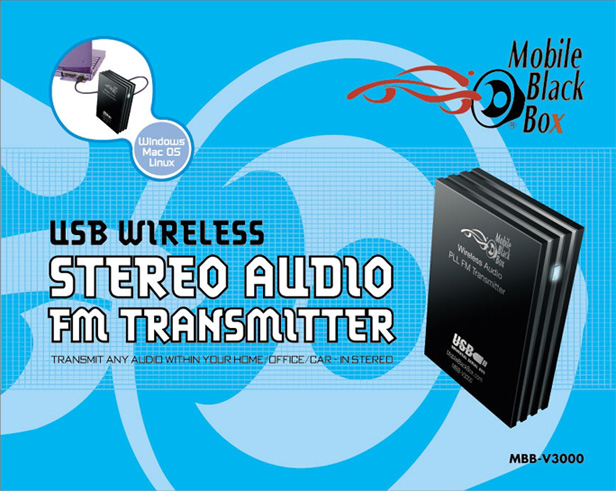
V2500/V3000
FM TRANSMITTER - USER MANUAL (PDF)
V5000
FM TRANSMITTER - USER MANUAL (PDF)
V5000 FM TRANSMITTER USER MANUAL (Updated version - View online image)
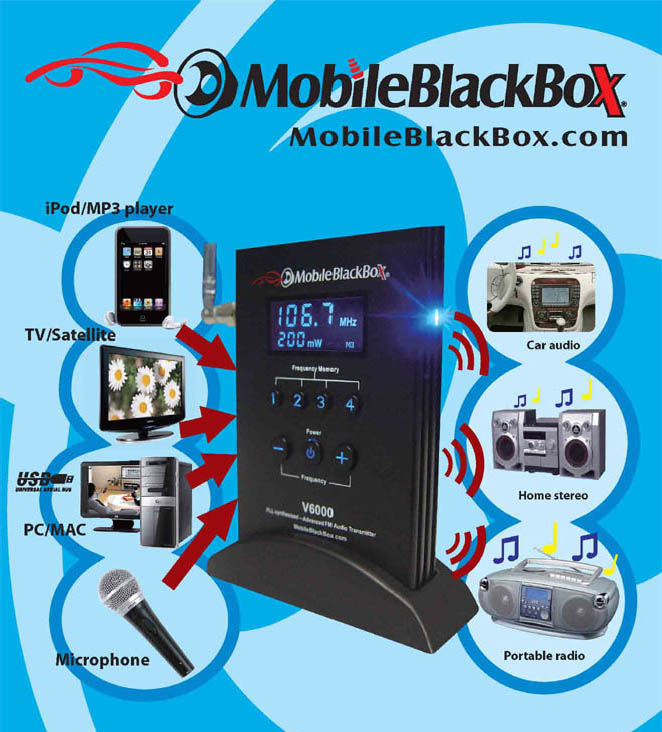
V6000 FM TRANSMITTER - USER MANUAL- (PDF)
Eclipse-4000 FM TRANSMITTER - USER MANUAL (PDF)
ORION-5000 FM TRANSMITTER - USER MANUAL (PDF)
|
| |
| |
| |
|
Contact Product Technical Support |
| |
| |
| |
| |
V3000/V2500/V2011 General Operating
tutorial:
 |
| |
|
|
|
Below
are more detailed steps in the proper operation of your Mobile Black Box USB FM
transmitter:
1.
Set dip switches on transmitter to preferred transmitting frequency.
2.
Plug transmitter into USB port. (DO NOT PLUG INTO A USB HUB, USE THE
USB
PORT
AT THE BACK OF THE COMPUTER INSTEAD)
3.
Play any audio file or play any internet audio file or internet
radio station. (The ‘Blue’ LED light on the side of the transmitter should come
ON)
4.
Keep in mind; you will no longer hear audio from you computer
speakers because you are not using your computer sound card anymore, instead
the USB FM transmitter is your sound card and all FM radios within the range
are your speakers. (You may switch between
the USB FM transmitter and you other installed sound devices (i.e. Sound Card,
etc.) See steps here..
5.
There are TWO different places on your computer to adjust the audio levels: Your system sound level and your Media player sound level.
You MUST
adjust the volume level in both places for optimum sound
quality. Steps 6 and 7 below will outline the proper method of
adjusting both the system volume and media player volume.
6. Adjusting
system sound: With the transmitter plugged-in and audio playing, Double-click
the speaker icon in the system tray. The system tray is the set of icons in the
bottom right corner of your screen. Adjust the volume control level to about
50-60% (volume too low will give you a weak audio transmitting signal; volume
too high will cause distortion).
See steps here...
7.
Adjusting media player
sound: This is the program you are playing your audio
or video on, this could be Windows Media
Player (default player on most systems), WinAmp, REAL Player, iTunes, etc.. Adjust the volume level of the player to about 50-60%
(volume set too low will give you a weak audio transmitting signal; volume set too
high will cause distortion).
8.
Tune any FM radio (within range) to the frequency set on the
transmitter and you should hear the audio from your PC.
|
| |
| |
|
Choosing between USB FM transmitter and other installed sound devices
(i.e. Sound card, etc.):

|
|
1. DOUBLE-CLICK SPEAKER ICON... |
 |
|
 |
|
Windows XP |
Windows 2000 |
| |
| |
| |
|
2. Choose Options>>Properties |
| |
|
 |
|
|
| |
| |
|
3. Choose between USB FM transmitter and other installed devices. |
| |

|
| |
| |
|
|
|
|
| |
| |
Adjusting PC system volume level:
 |
| |
|
(Please note: MBB USB FM transmitter must be plugged into the USB port
before performing the steps below.) |
|
|
|
1.
DOUBLE-CLICK SPEAKER ICON... |
| |
| |
|

|

|
Windows XP
|
Window 2000 |
| |
| |
|
|
|
|
|
2. ADJUST VOLUME LEVEL(s) TO ABOUT 60% . |
|
|
|
 |
| |
|
|
NOTE:
If you choose to unplug the FM transmitter from the USB port, MAKE
SURE you have stopped the audio from playing in the media player.
Unplugging the FM transmitter while ‘BLUE’ LED is ON may cause your
operating system to crash, which will require you to reboot your
system. |
| |
| |
| |
|
|
Apple MAC OS X Hardware setup:
 |
| |
|
|
|
Go to >>The Apple Menu
Go to >>System Preferences
Go to >>Hardware >>>>>Sound
Go to >>Output TAB
The Mobile Black
Box transmitter device should appear in the list as
"Burr-Brown
Japan
PCM2702"
Select >>"Burr-Brown
Japan
PCM2702"
from
the list.
Once selected
you should hear an audible system beep from the FM radio set to receive the
radio signal and the blue LED light should flashes once.
|
| |
|
|